


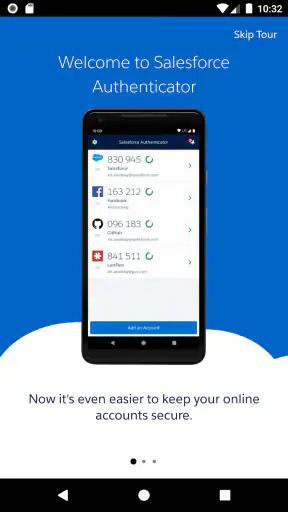
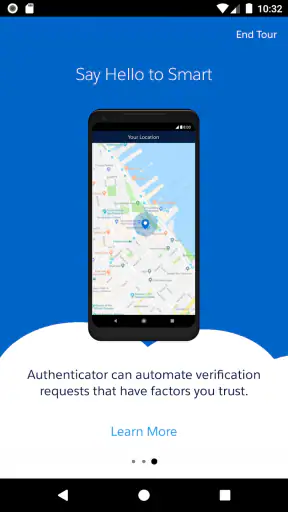
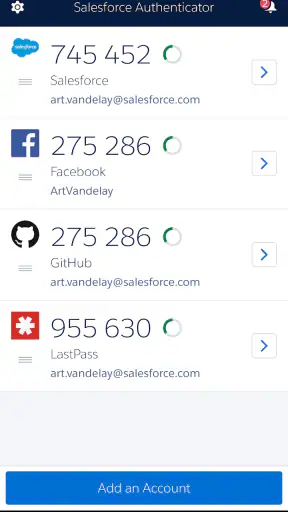
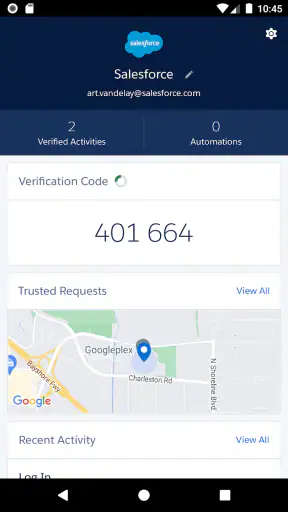
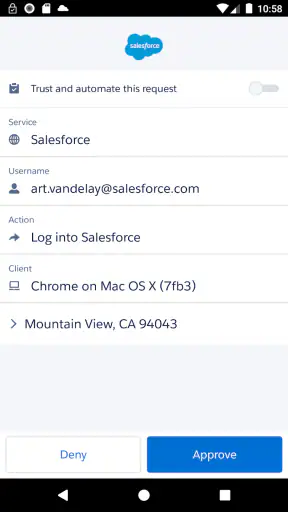
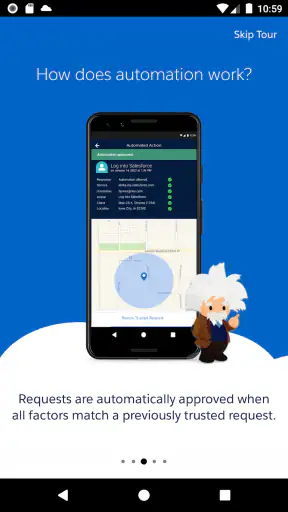
I first noticed the value of Salesforce Authenticator in a situation that has nothing to do with flashy app features: a household where more than one person needs access to work or school accounts, but nobody wants to treat a shared phone as a shared identity. This free business app from Salesforce.com, inc. adds another step when signing in, helping the account owner approve access instead of relying on a password alone. After using it, my main impression is simple: it is most useful when each person treats authentication as personal, even if the phone or living space is shared.
The app is focused rather than broad. It is not a general password manager, a messaging tool, or a family coordination app. Its job is to support two-step verification for compatible Salesforce sign-ins and related account workflows. That narrow purpose is also its strength. I do not open it to organize my day; I open it when a login needs a deliberate confirmation. For readers comparing security apps in the business category, that distinction matters because the best choice depends on whether you need a dedicated approval experience or a wider collection of account tools.
Using it around a shared household
A realistic example is a household with one adult working remotely, another managing a small business, and a teenager using a school-related account. The phones may be left on a kitchen counter, charged in the same room, or occasionally borrowed for ordinary tasks. That does not make the accounts interchangeable. When Salesforce Authenticator asks for a sign-in approval, the person who owns the account should be the person making the decision. The app can support that boundary, but it cannot create the boundary for you.
This is the first practical lesson I would give a friend: do not install the app under a casual shared-device arrangement and assume the presence of the app means everyone can approve requests. Authentication approval is an account responsibility. If several people use the same device, the risk is not only that somebody sees a notification. A more serious problem is that somebody may approve a request without knowing whether it was genuinely initiated by the account owner.
I found the confirmation approach more reassuring than treating a password as the whole defense. A password can be copied, guessed, reused, or entered on the wrong page. A separate approval step creates a moment to stop and ask, “Did I just try to sign in?” That pause is especially useful in a busy home, where a person may be switching between a laptop, a work phone, and a shared tablet.
Still, I would not describe the app as a magic shield. If the wrong person controls the phone that receives the approval, or if household members routinely unlock one another’s devices, the second step loses some of its practical separation. The app is strongest when the account owner keeps control of the device and pays attention to every request. In other words, the security benefit depends partly on household habits, not just installation.
For a shared device, I would establish a simple routine before relying on it. Each user should know whose account is connected, whose phone receives approvals, and what to do with an unexpected request. A declined request should be treated as a warning rather than an annoyance. If the same person repeatedly receives approvals they did not initiate, that is a reason to review the account and sign-in setup instead of continuing to tap through alerts.
Where the account boundary begins
Setup is the point where many families make an avoidable mistake. The app is not something I would configure by passing a phone around and letting each person experiment. I would start with the account owner, the device that person normally controls, and a quiet moment when an approval can be tested carefully. The goal is to connect the correct account to the correct person, not merely to get a notification appearing somewhere.
I also recommend labeling the mental ownership clearly, even if the app itself is only being used for one person. “This approves my work account” is a much safer rule than “this is the family authentication phone.” The latter wording encourages casual approvals and makes it harder to investigate a suspicious request later. If a household truly needs more than one person to help with an account, that arrangement should be decided at the account level rather than improvised through one shared authenticator installation.
One useful trade-off is convenience versus separation. Keeping the authenticator on the phone you carry every day makes approvals quick, but it also means the phone becomes important to your ability to sign in. Keeping it on a device that stays at home may create more physical separation, yet it can be frustrating when you are away. I would choose the device that the account owner controls reliably, not automatically the newest or most convenient device in the house.
Before depending on the app for an important work session, I would perform a normal sign-in and make sure the approval experience is understandable. I would also make sure every household member knows not to approve a prompt merely because it appeared. That rehearsal is one of the less obvious benefits of setup: it turns a vague security concept into a recognizable action. People learn what a legitimate request feels like before an urgent situation occurs.
The app is listed as free, which removes a common barrier for individuals and small teams evaluating an additional security step. That does not mean the surrounding account or organizational service is free, nor does it mean every login environment will use the app in exactly the same way. I would judge the app by whether it fits the account system I need to protect, rather than by treating the price as proof that it will solve every access problem.
Coordinating approvals without sharing identities
Coordination is where a household approach either works or falls apart. If I am the account owner and someone else is nearby when I sign in, that person can remind me to check the request, but they should not become the person who approves it by default. A quick verbal confirmation can be useful, yet the final decision should remain with the person responsible for the account. This keeps convenience from quietly turning into shared access.
For remote work, I can imagine using the app while moving between a personal laptop and a company computer. The approval arrives on the trusted phone, and I can compare the timing with what I just did on the computer. If I did not initiate a sign-in, I would reject it and investigate. That workflow is more meaningful than simply accepting every prompt, because the value comes from matching the request to an action I recognize.
A less obvious limitation appears when the account owner is unavailable. A partner or housemate may know that a login is urgent, but urgency is not the same as authorization. If the owner is traveling, asleep, or dealing with a dead phone, another person may not be able to continue the sign-in safely. I see this as an important planning issue for small businesses: authentication should be included in the account’s recovery and continuity plan, not treated as a private detail that nobody discusses until access is blocked.
I would also avoid using household chat as a substitute for careful approval. Sending a message such as “I am logging in now” can reduce confusion, but it does not prove that the prompt belongs to that login. The safer habit is to compare the prompt with the action on the screen and approve only when both line up. That small distinction is easy to overlook and makes a real difference during a busy day.
Compared with a typical authenticator that displays rotating codes, an approval-based workflow can feel more direct because I am responding to a request instead of copying a number between screens. The trade-off is that it may be less comfortable for someone who prefers an offline code they can type wherever needed. A password manager can also be more useful when the main problem is creating and storing many unique passwords. Salesforce Authenticator is better suited to the narrower job of adding a deliberate second check to supported sign-ins.
Age, trust, and sensible expectations
The content rating is Everyone, but that should not be confused with “appropriate for unsupervised account administration by every age group.” The app itself is not presented as an entertainment product, and its important decisions involve access to accounts. A younger person may be perfectly capable of understanding a notification while still not being the right person to approve a parent’s work login. Age is only one part of the question; account ownership, judgment, and trust matter more.
For a teenager using a personal school or part-time-work account, I would encourage them to learn the same rule I use: recognize the sign-in, check the timing, and stop when something looks wrong. That is a useful digital habit. I would not, however, put several unrelated accounts on one family phone simply because the phone is always available. Convenience can blur responsibility, and authentication tools work best when their connection to an individual account is obvious.
Trust also has a technical side. A trusted phone is not automatically a trusted person. Someone may borrow the device, see a prompt, and assume it is harmless. Someone may also approve a request while trying to help, without realizing that the request came from an old browser session or an unexpected device. I prefer a household rule that treats every approval as a security decision, even when the person asking for help is familiar.
The app’s age rating makes it approachable, but the business context makes guidance worthwhile. I would explain the purpose in plain language rather than presenting it as a button to tap: the app is checking whether the person holding the account really wants to let this sign-in continue. That explanation helps children, older relatives, and less technical housemates understand why an unexpected request should be refused instead of accepted to make the notification disappear.
Another point I appreciate is that the app does not need to be turned into a family management system to be useful. I would not expect it to decide who in the household may access an account, supervise screen time, or coordinate chores. Those are separate needs. Salesforce Authenticator can participate in a responsible routine, but it should not be mistaken for family controls, shared-account governance, or a replacement for clear agreements.
What the current app experience suggests
The app has been available since November 4, 2013, and its current version is 4.8.0. I mention that because the product feels like an established business utility rather than a newly launched experiment. Salesforce.com, inc. is the developer, and the app has an average rating of 4.4 from around 27 thousand ratings, with over 5 million installs. Those figures suggest that many people find the basic idea useful, while the rating also leaves room for the ordinary friction that comes with account security.
On Android, the listed minimum operating system is Android 9. That is helpful for people deciding whether an older phone can serve as the trusted device. I would check the phone’s software before planning a household setup, especially if the spare device is several years old. A compatible operating system is only the first step, though; the device must also remain available to the account owner and be maintained well enough to receive and display approval requests.
The main strength is focus. I can understand what the app is for without navigating a crowded security suite. That makes it easier to teach the approval rule to somebody who does not want to learn a full password-management system. The main weakness is the same narrow focus: if I need password generation, secure notes, broad support across unrelated services, or a code-based fallback for many accounts, I would probably look at another tool or use a combination of tools.
I also see a psychological advantage in the approval moment. Copying a code can become automatic, while a request notification invites a yes-or-no decision. That can improve awareness when the user is paying attention. It can also create notification fatigue if prompts arrive unexpectedly or if the user starts approving them without checking. The app therefore rewards a disciplined workflow rather than passive trust.
For a small business owner, the best use may be protecting an individual administrative login while keeping account roles separate among staff. I would not use one person’s authenticator as an informal substitute for giving each worker the right account access. If several people need access, the organization should structure those accounts appropriately. The authenticator can strengthen a login, but it cannot correct poor permission design.
For a student or employee, the app may be a good fit when the supported sign-in system already expects this kind of verification. For someone who mainly wants to store passwords for shopping, banking, and subscriptions, it is probably not the first app I would choose. A broader password manager or a code-based authenticator may cover that wider need more naturally. The right question is not whether Salesforce Authenticator is better in every situation; it is whether its approval workflow matches the accounts I actually use.
Practical habits that make the second step worthwhile
I would keep three habits from my own use. First, I would approve only a request that matches a sign-in I just started. Second, I would treat an unexpected prompt as a possible warning, not as a harmless mistake. Third, I would decide in advance how I will regain access if the trusted phone is lost, unavailable, or replaced. These habits are more important than installing the app and forgetting how it works.
For a shared household, I would add a fourth habit: never ask another person to approve a request by saying only, “Can you tap this?” The request should be explained, and the account owner should make the decision. That may sound slower, but it prevents the app from becoming a blind confirmation button. It also teaches younger users and less technical relatives that security prompts deserve attention.
When comparing it with code-generating alternatives, I would think about the places where I sign in. If I usually have the trusted phone beside me and want a quick confirmation, the approval model is comfortable. If I often work offline, use systems that do not support this flow, or need one authenticator for many unrelated services, a code-based option may be more flexible. Neither choice removes the need to protect the phone and question suspicious requests.
I would also resist the temptation to judge the app only by how fast an approval appears. Speed is convenient, but a security tool should make the user pause long enough to recognize the action. If the process feels effortless because every request is accepted automatically, the most important protection has been weakened by behavior. The best experience is quick when the request is expected and cautious when it is not.
My household verdict
I recommend Salesforce Authenticator to people who need a focused second layer for compatible Salesforce-related sign-ins and who can keep authentication tied to the correct account owner. Its free price, Everyone rating, established history, and broad install base make it approachable, while the straightforward approval idea is easier to explain than a complicated security dashboard. In my experience, it works best as a personal trust check, not as a shared household utility.
I would skip it as my primary choice if I wanted a universal password manager, a tool for organizing many unrelated services, or a system designed to manage family permissions. I would also hesitate to rely on it in a home where phones are passed around freely and nobody agrees who is responsible for approvals. In those circumstances, the issue is not that the app is incapable; the setup does not preserve the account boundaries the app depends on.
For the right user, the most important feature is the pause before access is granted. That pause gives me a chance to connect the notification with something I actually did, which is more meaningful than treating every prompt as routine. With clear ownership, a prepared recovery plan, and a household rule against blind approvals, this business app is a sensible, focused addition to everyday account security.


